
Text
概述[文本]
<Text /> 是文本组件,通过属性也可以实现富文本效果。
示例代码
import cooApp, { basicWidgets } from 'coolink'

const { Text } = basicWidgets

export default class NormalText extends cooApp.Widget {
  render () {
    return {
      <Text>这是一个普通文本</Text>
    }
  }
}

export default class RichText extends DF.Widget {
  render () {
    return {
      <Text
      	richText={[
      		text: '富文本第二句话是红色,',
      		color: 0xffff0000
      	], [
      		text: '富文本第三句话是绿色20px,',
      		color: 0xff00ff00,
          size: 20
      	], [
      		text: '富文本第四句话是黄色30px加粗。',
      		color: 0xff0000ff,
          size: 30,
          weight: 'bolder'
      	]}
      >
        这是富文本开头,
			</Text>
    }
  }
}
组件属性
| 属性名 | 类型 | 说明 | 默认值 |
|---|---|---|---|
| align | string- 'left' - 'right' - 'center' | 文本对齐方式 | 'left' |
| lineHeight | number | 行高 由于安卓与 iOS 行高的渲染效果不同,为保证单行效果一致,安卓默认具有行高为 1,iOS 不设置默认行高。 在渲染多行文本时,安卓的行间距会比 iOS 小,如需保持多行文本行高相同,需要显示声明行高 | 1 - 安卓 null - iOS |
| wrap | boolean | 是否允许换行 | false |
| overflow | string- 'ellipsis' - 'visible' - 'fade' - 'clip' | 文本超出时的显示方式 | |
| maxLines | number | 最大显示行数 | |
| richText | SpanSpan[] | 富文本属性,Span 类型具有的属性在下方;这些属性除 text 外,在 Text 组件中直接使用同样有效 | |
| text | string | 富文本文字内容 | |
| size | number | 文本/富文本文字大小 | |
| weight | string- 'normal' - 'light' - 'bold' - 'bolder' | 文本/富文本字重 | normal |
| color | number | 文本/富文本色值 | 0xff000000 |
| shadow | {color?: number, offsetX?: number, offsetY?: number, blur?: number, spread?: number} | 文本/富文本阴影 | |
| letterSpacing | number | 字符间距 | |
| wordSpacing | number | 单词间距 | |
| decoration | string- 'none' - 'lineThrough' - 'overline' - 'underline' | 文本装饰线 |
样例 1
export default class HomePage extends Widget<any, any> {
  render() {
    const MARGIN = 10;
    return (
      <Page backgroundColor={Colors.Pagebg} appBar={<AppBar title="Text 文本组件" />}>
        <ScrollView>
          <Container alignItems={'baseline'}>
            <Text>一天不学习就浑身难受</Text>
          </Container>
          <Container
            margin={{ top: MARGIN / 2, bottom: MARGIN / 2, left: MARGIN, right: MARGIN }}
            boxShadow={{ color: 0x20649ef4, offsetX: 3, offsetY: 3, blur: 5 }}
            borderRadius={5}
            onTap={this.props.onTap && this.props.onTap.bind(this)}
          >
            <Container
              width={
                this.props.contentWidth ? this.props.contentWidth + 40 : ui.screenWidth - 2 * MARGIN
              }
              backgroundColor={Colors.White}
              borderRadius={5}
              padding={20}
            >
              <Text
                richText={[
                  { text: '这是富文本的红色文字,', color: 0xffff0000 },
                  { text: '这是富文本的绿色加粗文字,', color: 0xff00ff00, weight: 'bolder' },
                  {
                    text: '这是富文本的蓝色加粗加大文字。',
                    color: 0xff0000ff,
                    weight: 'bolder',
                    size: 20
                  }
                ]}
              >
                这是一段富文本,
              </Text>
            </Container>
          </Container>
          <Container
            margin={{ top: MARGIN / 2, bottom: MARGIN / 2, left: MARGIN, right: MARGIN }}
            boxShadow={{ color: 0x20649ef4, offsetX: 3, offsetY: 3, blur: 5 }}
            borderRadius={5}
            onTap={this.props.onTap && this.props.onTap.bind(this)}
          >
            <Container
              width={
                this.props.contentWidth ? this.props.contentWidth + 40 : ui.screenWidth - 2 * MARGIN
              }
              backgroundColor={Colors.White}
              borderRadius={5}
              padding={20}
            >
              <Container
                height={50}
                border={{ color: Colors.Primary }}
                justifyContent="center"
                alignItems="center"
              >
                <Text
                  border={{ color: Colors.Red }}
                  // backgroundColor={Colors.Primary}
                  // padding={5}
                >
                  程序员的水平可以差到什么程度
                </Text>
              </Container>
            </Container>
          </Container>
        </ScrollView>
      </Page>
    );
  }
}
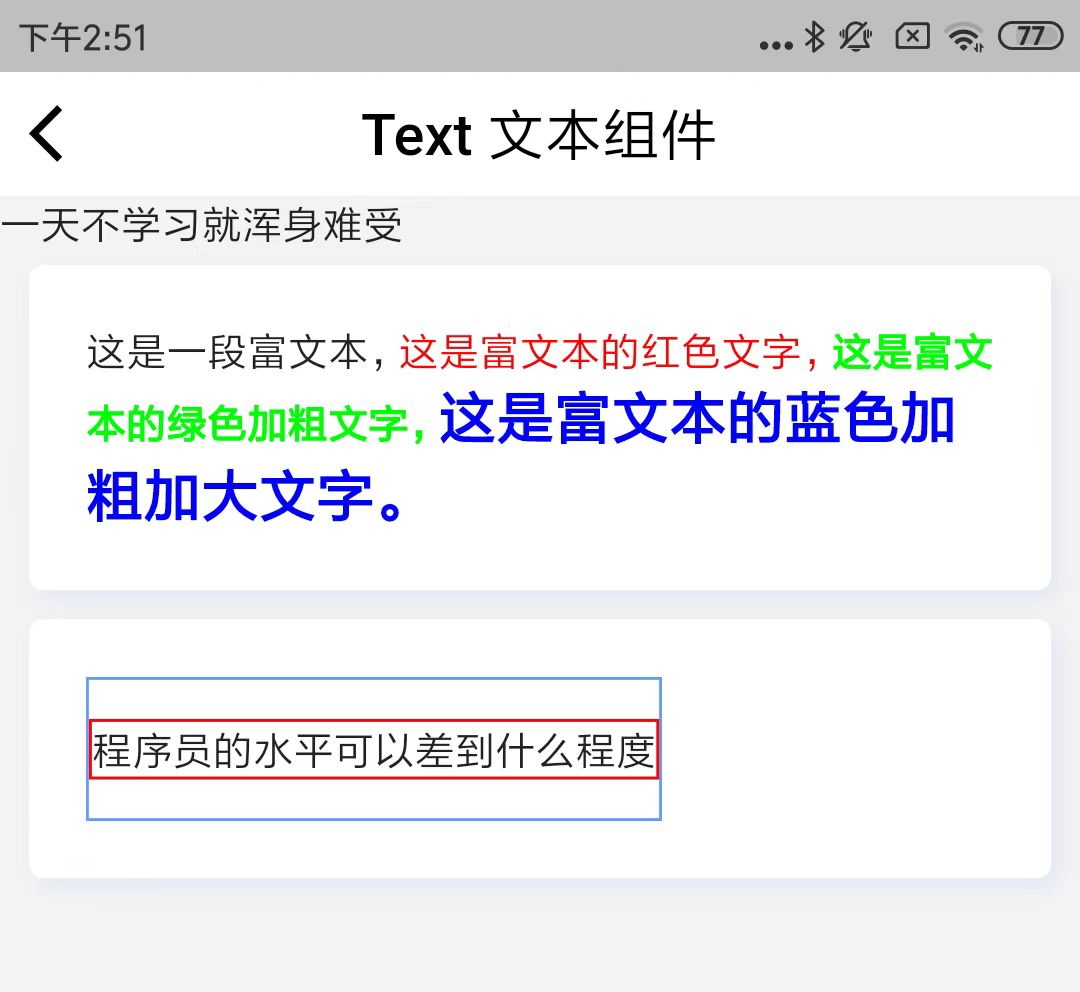
上述例子的效果图:
©深圳市酷开网络科技股份有限公司 ICP备案号粤ICP备06098778号